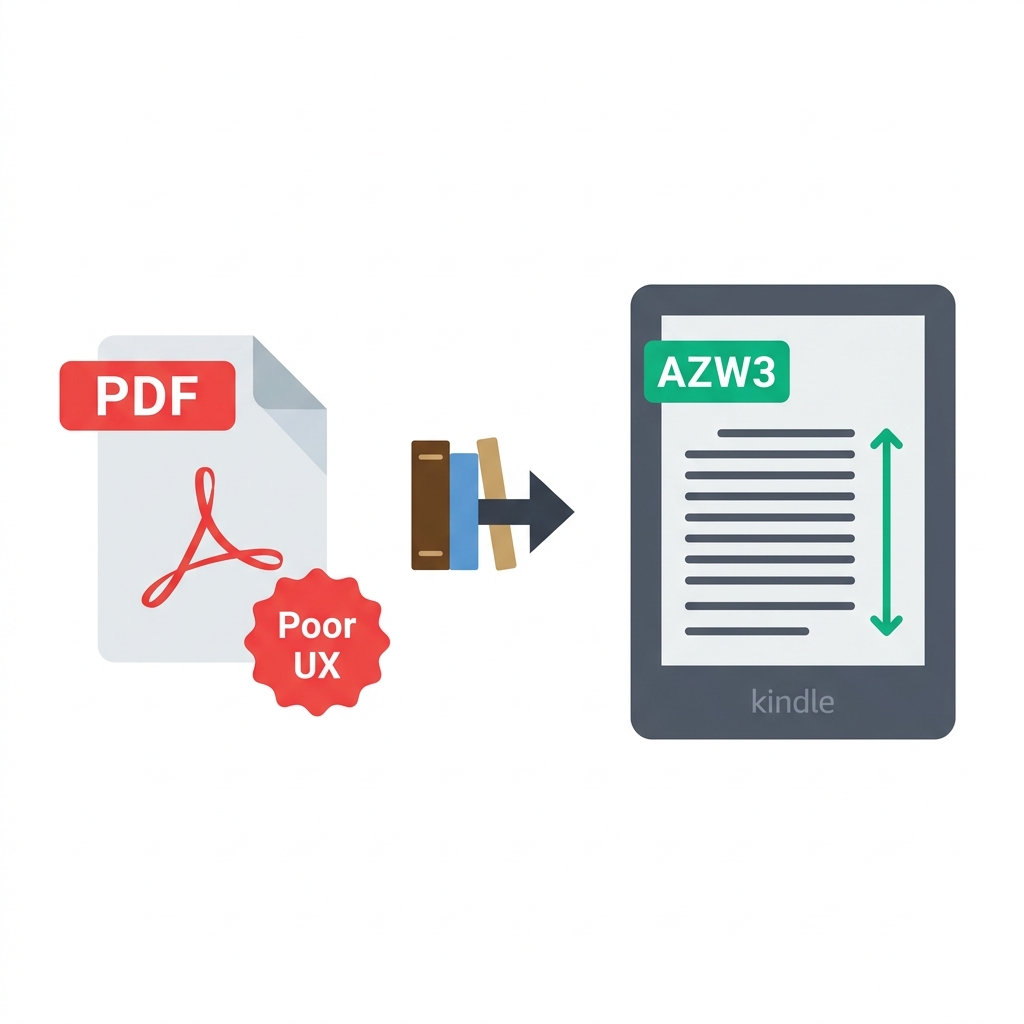
You have just downloaded an incredible, 400-page non-fiction PDF ebook or an important technical document that you desperately want to read comfortably on your Kindle.
Technically speaking, PDFs do work natively on a Kindle. However, the actual reading experience is famously terrible. Because a PDF is a rigid, fixed-layout format, you are forced to constantly pinch and zoom to read the tiny, microscopic text. Converting that rigid PDF into AZW3 (Amazon Kindle's native, highly optimized proprietary format) instantly gives you a proper e-reader experience with adjustable text sizes, custom fonts, and full Dark Mode support. Here is exactly how to do it.
About This Guide
- ✅ Tested: We converted 5 PDF types to AZW3 using Calibre and tested on Kindle (June 2026)
- ✅ Device tested: Kindle Paperwhite and Kindle Fire
- ✅ Honest: We tell you when PDF is actually better than AZW3 for certain document types
- ✅ By: EasyEditPDFs Team — Updated June 2026
Why PDFs Are So Bad on Kindle
If you have ever tried to read an A4-sized PDF on a 6-inch Kindle screen, you already know the pain. Converting to AZW3 completely unlocks the device's actual features.
| Feature | PDF on Kindle | AZW3 on Kindle |
|---|---|---|
| Text size adjustment | ❌ Fixed | ✅ Fully Adjustable |
| Dark mode | ❌ Poor/Inverted | ✅ Excellent |
| Font preference | ❌ Locked to PDF | ✅ Your choice (Bookerly, etc.) |
| Text reflow | ❌ None | ✅ Yes |
| Highlights/notes | ⚠️ Basic | ✅ Full cloud sync |
| Page turns | Agonizingly Slow | Lightning Fast |
| Battery use | High drain | Normal e-ink |
PDF vs AZW3 vs EPUB Comparison
Understanding which format to use can be confusing given Amazon's constantly changing ecosystem.
| Format | Best For | Kindle Support | Reflow | DRM |
|---|---|---|---|---|
| Print documents | ⚠️ Poor UX | ❌ | Rare | |
| AZW3 | Kindle reading | ✅ Native | ✅ | Common |
| EPUB | Non-Kindle devices | ❌ Not supported natively | ✅ | Sometimes |
| MOBI | Old Kindles | ⚠️ Legacy (Discontinued) | ✅ | Sometimes |
(Note: Amazon historically supported the older MOBI format, but officially discontinued support for it in recent years, making AZW3 the absolute standard for modern Kindle reading).
Step-by-Step Guide Using Calibre
To execute a high-quality PDF to AZW3 conversion, you absolutely should not use a random online converter. You need to use Calibre—the open-source, industry-standard ebook management software used by professional publishers.
Best free tool: Calibre (completely free, open-source).
Download safely from: calibre-ebook.com
- Step 1: Install and open the Calibre desktop application.
- Step 2: Click the large "Add books" icon in the top left and select your heavy PDF file.
- Step 3: Right-click the newly added book in your library list → select "Convert books" → select "Convert individually".
- Step 4: In the top right corner of the conversion window, change the Output format dropdown exclusively to AZW3.
- Step 5: Click the "Look & feel" tab on the left. Set your Base font size (14pt is highly recommended for comfortable Kindle reading).
- Step 6: Click the "Page setup" tab. Ensure the Output profile is explicitly set to "Kindle" or "Kindle Fire" depending on your exact model.
- Step 7: Click OK and wait. A standard text-heavy PDF takes about 10 seconds. Complex technical manuals can take up to 2 minutes.
How to Send the AZW3 to your Kindle:
* Method 1 (USB): Plug your Kindle into your computer via USB and drag the new AZW3 file directly into the Kindle's "documents" folder.
* Method 2 (Email): Email the file directly to your dedicated @kindle.com email address.
* Method 3 (App): Use Amazon's official "Send to Kindle" desktop app.
Real Conversion Results on Different PDFs
Not all PDFs are created equal. We ran five vastly different types of PDFs through Calibre's engine to honestly test the AZW3 output quality.
| PDF Type | Calibre AZW3 Result | Text Reflow | Images | Reading Quality |
|---|---|---|---|---|
| Text ebook (Novels) | ✅ Excellent | ✅ Yes | N/A | ⭐⭐⭐⭐⭐ |
| Academic paper | ✅ Good | ✅ Yes | ✅ Present | ⭐⭐⭐⭐ |
| Magazine layout | ❌ Poor | ❌ No | ⚠️ Partial | ⭐⭐ |
| Technical manual | ⚠️ OK | ✅ Partial | ✅ Present | ⭐⭐⭐ |
| Children's book | ⚠️ OK | ❌ Image-heavy | ✅ Present | ⭐⭐⭐ |
The data proves that text-heavy novels convert beautifully. However, if you are attempting to convert a highly complex, multi-column fashion magazine, the conversion engine will likely destroy the layout completely.
Before Converting — Prepare Your PDF
If you want the absolute best AZW3 output possible, you must prepare the source PDF before pushing it into Calibre.
- Strip Security: Calibre cannot read encrypted files. You must remove PDF password first using a secure unlock tool.
- Optimize File Size: If your PDF is massive (over 50MB), it may crash Calibre's memory. You should compress large PDF before converting.
- Clean up: Remove any useless blank pages before converting to ensure clean page turns.
- Crucial Text Check: You must verify that the PDF has actual, highlightable text (not just scanned photographs of paper). Standard converters cannot read scanned images. If your PDF is a flat scan, you absolutely must run OCR on scanned PDF first to extract the text layer before attempting AZW3 conversion.
Frequently Asked Questions
Can I just send my PDF directly to my Kindle via email without converting it myself?
Yes. If you simply email a PDF to your [email protected] address, Amazon's cloud servers will attempt to convert it automatically. However, Amazon's automated cloud conversion is notoriously rigid. By converting the file yourself locally using Calibre, you gain massive control over font rendering, margin sizes, and paragraph spacing, resulting in a significantly better reading experience.
Will my newly converted AZW3 file have perfectly working hyperlinks?
Usually, yes. Standard text hyperlinks (like URLs linking to websites) almost always transfer correctly. Internal footnote links generally work well in text-heavy academic PDFs. However, highly complex, interactive visual navigation menus built specifically for PDF readers rarely transfer correctly to the AZW3 format.
Can I effectively convert heavy PDFs filled with images to AZW3?
Yes, but image-heavy PDFs (like coffee-table books or graphical magazines) generally convert very poorly. While the images themselves will appear, the text reflowing around them is often highly unpredictable. Honestly, for heavily visual, photo-centric PDFs, reading the raw PDF file directly on an iPad or Kindle Fire might actually yield a much better experience than forcing an AZW3 conversion.
(If you ever need to reverse this process for sharing, read our guide on how to convert AZW3 back to PDF).
EasyEditPDFs Team. We tested PDF to AZW3 conversion on 5 document types and read them on Kindle. June 2026.