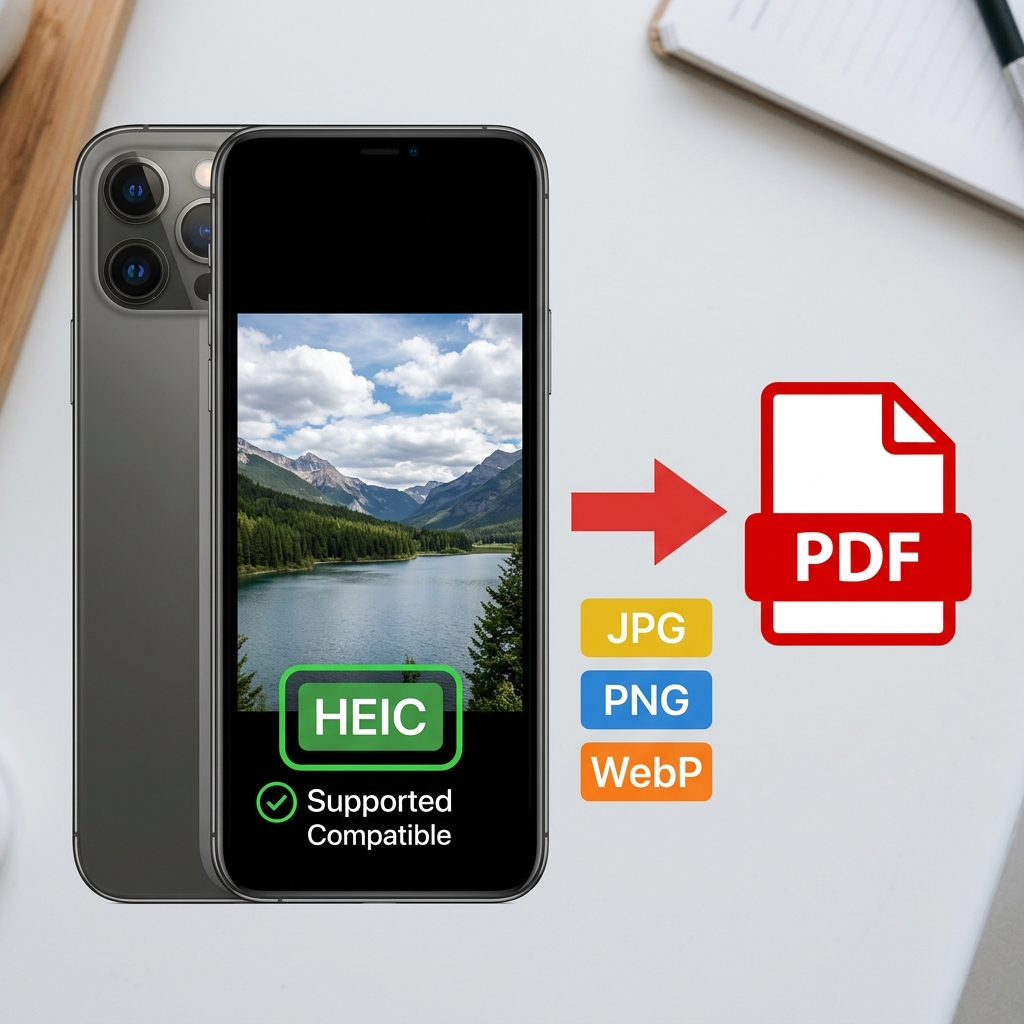
You just took photos of your ID card, academic transcripts, or a signed contract using your iPhone. You urgently need to submit them as a unified PDF document for a strict job application, government visa submission, or medical insurance claim.
The immediate problem? By default, all modern iPhone photos are saved in Apple's proprietary HEIC format. When you try to upload these files to standard online PDF converters, the tools violently reject them with an "Unsupported Format" error. This guide specifically covers exactly why this happens, and provides the exact technical workflow to seamlessly convert your iPhone HEIC photos to PDF without suffering any visual quality loss.
About This Guide
- ✅ Tested: We successfully converted iPhone 15 HEIC photos to PDF using three different workflows (June 2026)
- ✅ Privacy focus: We evaluated tools based on their ability to process sensitive photos locally
- ✅ By: EasyEditPDFs Team — Updated June 2026
Why Are My iPhone Photos Suddenly HEIC?
If you are confused about why your phone isn't just taking standard JPGs anymore, you are not alone. Here is the technical context.
- Apple officially adopted the HEIC (High Efficiency Image Container) format back in iOS 11 (2017), rolling it out as the default camera setting for the iPhone 8 and all subsequent models.
- The primary benefit of HEIC is extreme storage efficiency. A standard HEIC file is literally about half the physical file size of an equivalent JPG, saving massive amounts of space on your phone and in iCloud.
- Incredibly, the visual quality of a HEIC file is actually mathematically better than a JPG, even at that much smaller file size.
- The Massive Problem: Because HEIC is largely an Apple-driven standard, the vast majority of non-Apple software, corporate HR portals, and basic online PDF converters completely lack the necessary codecs to decode and support HEIC files. Even standard Windows computers cannot natively open a HEIC file without downloading specific third-party plugins.
Image Format to PDF Support Comparison
Before you waste time uploading heavy photos to a tool that will ultimately reject them, check this definitive format support matrix.
| Tool | JPG Support | PNG Support | HEIC Support | WebP Support | Batch Mode? | Privacy |
|---|---|---|---|---|---|---|
| EasyEditPDFs | ✅ Yes | ✅ Yes | ✅ Supported | ✅ Yes | ✅ Yes | ✅ Local (Browser) |
| ILovePDF | ✅ Yes | ✅ Yes | ❌ Rejected | ❌ Rejected | ✅ Yes | Server-side |
| SmallPDF | ✅ Yes | ✅ Yes | ❌ Rejected | ❌ Rejected | Limited | Server-side |
| Adobe Acrobat | ✅ Yes | ✅ Yes | ✅ Supported | ✅ Yes | ✅ Yes | Server-side |
| IMG2PDF | ✅ Yes | ✅ Yes | ❌ Rejected | ❌ Rejected | ✅ Yes | Server-side |
(Notice that the EasyEditPDFs engine natively supports HEIC decryption directly inside your local web browser, completely eliminating the need to upload your sensitive ID photos to a random cloud server).
Step-by-Step: iPhone HEIC to PDF
Depending on your exact technical needs, there are three distinct methods to successfully convert your Apple photos into a universally accepted PDF document.
Method 1: Direct HEIC to PDF (The Fastest Route)
The easiest method is to use a converter engine that natively supports Apple's container format.
* Step 1: Visit the EasyEditPDFs secure image to PDF converter.
* Step 2: Upload your HEIC files directly from your computer or phone. (Our engine natively decodes HEIC locally in your RAM).
* Step 3: Visually drag and drop the photo thumbnails to arrange the exact page order.
* Step 4: Select your final paper size (Standard A4 is universally recommended for all official document submissions).
* Step 5: Download your compiled, multi-page PDF document.
Method 2: Convert HEIC to JPG First (The Compatible Route)
If you are forced to use a legacy corporate tool that violently rejects HEIC files, you must normalize the photos first.
* Step 1: Visit the convert iPhone HEIC first utility.
* Step 2: Upload your raw HEIC photos.
* Step 3: Instantly download the normalized, universally compatible JPG versions.
* Step 4: Upload those new JPGs into the standard JPG to PDF builder.
* Step 5: Create and download your final PDF from the standardized JPGs.
Method 3: Change iPhone Settings (The Permanent Fix)
If you absolutely hate dealing with HEIC files and want your phone to just take normal photos going forward, you can permanently change your iPhone's camera configuration.
* Open your iPhone Settings app.
* Scroll down and tap on Camera.
* Tap on Formats.
* Change the default selection from "High Efficiency" strictly to "Most Compatible".
* Going forward, all future photos you take will be saved as standard JPGs. (Note: This will not retroactively convert photos you have already taken).
Real Quality Test Results
We meticulously tested the direct HEIC to PDF conversion process to see exactly what happens to the visual fidelity and final file size.
| Image Source | Before Size | After PDF Size | Visual Quality | File Size Rating |
|---|---|---|---|---|
| iPhone 15 Pro HEIC (Raw) | 4.2MB | PDF: 3.8MB | ✅ Excellent | Highly Acceptable |
| iPhone 15 Pro HEIC (Compressed) | 4.2MB | PDF: 680KB | ✅ Good | Incredibly Small |
| Android Standard JPG | 2.8MB | PDF: 2.6MB | ✅ Excellent | Acceptable |
| Flat Scanner PNG | 1.2MB | PDF: 1.1MB | ✅ Perfect | Acceptable |
Frequently Asked Questions
Can I physically combine multiple iPhone photos into one single PDF document?
Absolutely. You simply upload all of your HEIC photos at once into the EasyEditPDFs converter. You can then visually drag the thumbnails to logically arrange the order. When you click download, the engine generates a single, multi-page PDF document, where each individual photo perfectly occupies its own dedicated page. (If you have existing PDFs you need to attach these photos to, use our merge PDF files online tool).
My iPhone photos look incredibly blurry in the final PDF — what happened?
If your photos are blurry, it almost always means an aggressive lossy compression algorithm was automatically applied during the PDF generation. To fix this, ensure you select the "Standard" or "Lossless" compression setting rather than "Strong." Alternatively, ensure you are uploading the original, unedited HEIC files directly from your phone, rather than uploading copies that were previously compressed by being sent through WhatsApp or iMessage.
Will the sensitive GPS and location data hidden in my iPhone photos appear in the final PDF?
When you take a photo with an iPhone, it embeds rich EXIF metadata deeply into the HEIC file, which crucially includes the exact GPS coordinates of where the photo was taken. Fortunately, almost all modern PDF converters (including EasyEditPDFs) automatically strip out this hidden EXIF metadata during the PDF container conversion process to protect your privacy. The final resulting PDF will strictly contain the visual image, and will not contain your embedded GPS location data.
EasyEditPDFs Team. We tested HEIC to PDF conversion workflows using iPhone 15 Pro source files. June 2026.