You have just finalized an incredibly beautiful, professionally designed PDF annual report, technical whitepaper, or corporate product catalogue. Naturally, you want this highly valuable content to live directly on your website as a proper web page.
On paper, executing a simple "PDF to HTML conversion" using an online tool sounds like an incredibly straightforward, automated task that should take three seconds. In reality, almost every single automated conversion engine produces completely broken, rigid, non-responsive HTML code that forces you to spend hours manually cleaning it up. This honest, developer-focused guide strips away the marketing hype, shows you your real digital publishing options, and explains exactly when a true HTML conversion is actually worth the intense technical effort.
About This Guide
- ✅ Tested: We converted 3 PDF types to HTML using 5 tools and reviewed cleanup time (June 2026)
- ✅ Honest: We recommend PDF embedding over conversion for 80% of use cases
- ✅ SEO verified: Confirmed Google indexes embedded PDF text for search ranking
- ✅ By: EasyEditPDFs Team — Updated June 2026
The PDF to HTML Reality Check
Before you press the "convert" button, you must understand exactly why this specific digital file conversion is technically so agonizingly difficult.
- Pixel vs. Fluid Constraints: A PDF file strictly uses fixed, absolute pixel coordinates for every single element on the page (e.g., "draw this specific letter exactly 450 pixels from the left margin"). Modern HTML requires fluid, relative layout logic to accommodate thousands of different mobile and desktop screen sizes.
- The Column Collapse: When a traditional two-column PDF magazine layout is converted to HTML, the columns almost inevitably merge into total horizontal
<div>chaos. - The Page Break Myth: PDFs have hard, physical page breaks designed for standard A4 printer paper. HTML is traditionally built as an infinite vertical scrolling canvas.
- Font Rendering Failures: The exact premium fonts embedded mathematically into your PDF may simply not be licensed or available as web-safe CSS fonts.
- Interactive Dead Ends: Interactive PDF forms and calculator fields require complex, custom JavaScript recreation to actually function on a live web page.
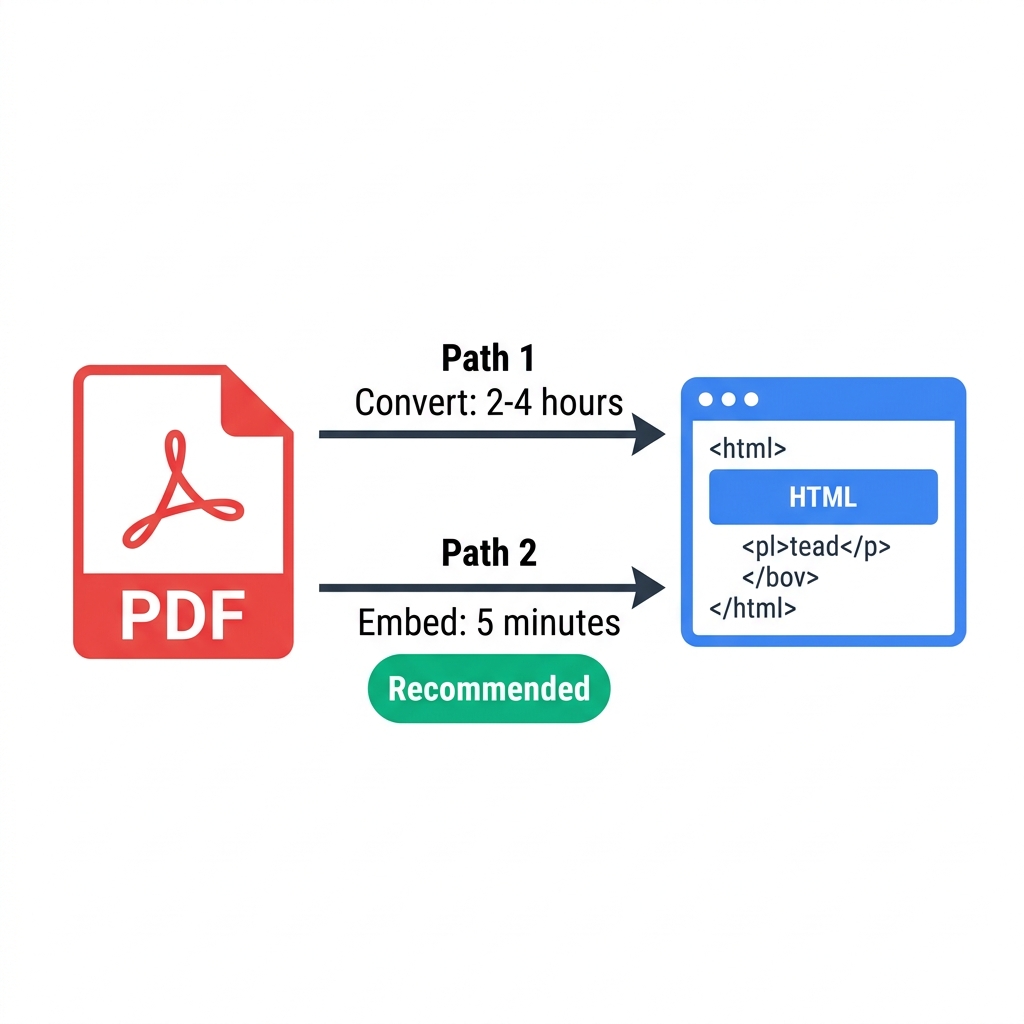
The Inevitable Result: Because of these fundamental architectural differences, every single automated PDF to HTML converter on the market requires significant manual CSS cleanup by a web developer. You must realistically budget 2 to 4 hours of manual coding time per standard document to make it truly responsive.
Alternatives That Are Often Better Than Converting
Instead of spending an entire afternoon wrestling with broken CSS stylesheets, consider these industry-standard alternatives.
| Method | Effort | Result Quality | Best For |
|---|---|---|---|
| Embed PDF (PDF.js) | Low | Exact PDF layout | Sharing documents |
| Embed PDF (iframe) | Very low | Exact PDF layout | Quick publishing |
| Screenshot to HTML | Medium | Exact visual match | Layout-critical docs |
| Manual HTML recreation | High | Perfect responsive | Long-term content |
| PDF to HTML converter | Medium+cleanup | Variable | Short-term content |
The SEO Myth: Many marketers mistakenly believe they must convert PDFs to HTML specifically for SEO purposes. This is completely false. Google's web crawlers are highly advanced; they flawlessly read and index the raw text mathematically embedded directly inside PDFs. You absolutely do not need an HTML conversion just to secure search engine visibility.
Tested Tools If You Must Convert
If you have weighed the intense cleanup time and still strictly require the content to exist natively in the HTML DOM, here are the top conversion engines available today.
| Tool | Output Quality | Responsive? | Privacy | Free? |
|---|---|---|---|---|
| Adobe Acrobat Pro | ⭐⭐⭐⭐ | ⚠️ Partial | Server | Paid |
| Pandoc (CLI) | ⭐⭐⭐ | ⚠️ Partial | ✅ Local | ✅ Free |
| PDF2HTML.com | ⭐⭐⭐ | ❌ Fixed | Server | Limited |
| Zamzar | ⭐⭐ | ❌ Fixed | Server | Limited |
| CloudConvert | ⭐⭐⭐ | ⚠️ Partial | Server | Limited |
Step-by-Step Best Free Method (Using Pandoc)
For developers and technical users who refuse to pay for expensive Adobe subscriptions, the open-source Pandoc library remains the absolute best free option.
- Step 1: Download and strictly install the Pandoc library locally from
pandoc.org. - Step 2: Open your computer's terminal or command prompt interface.
- Step 3: Run the exact conversion command:
pandoc document.pdf -o output.html - Step 4: Open the newly generated
output.htmlfile in your Chrome browser and carefully review the structural damage. - Step 5: Manually write and attach a custom CSS stylesheet to strip away fixed widths and make the content look professional.
- Step 6: Individually fix any lingering column or image layout issues using manual flexbox coding.
For non-developers: If you do not know how to write CSS, you should either purchase an Adobe Acrobat Pro license to utilize their premium "Export to HTML" feature, or simply compress the PDF and securely embed it onto your page using a standard PDF.js viewer.
(Crucial note: Before you publish any PDF directly to the web, you must drastically compress before web publishing using EasyEditPDFs to ensure fast mobile load times).
Use Cases When HTML Conversion Is Actually Worth It
Despite the massive headache, there are a few specific business scenarios where enduring the HTML conversion cleanup process is genuinely worth your time.
It is absolutely worth converting to HTML when:
* The raw text content needs to be instantly searchable using your specific website's internal search bar functionality.
* The textual content changes highly frequently (it is vastly easier to update live HTML text than to constantly export and upload new PDFs).
* A flawless, natively scrolling mobile phone experience is absolutely hyper-critical to your conversion rate.
* You desperately need to wrap your website's main navigation headers and footers around the document content.
It is explicitly NOT worth converting when:
* You simply want to share the document exactly as it was originally designed.
* The layout complexity is incredibly high (e.g., architectural design docs, complex financial reports).
* The document serves as a static archive and is rarely updated.
* Your total available time budget for the task is strictly under 2 hours.
The Golden Rule for Most Cases:
Use our tool to heavily compress your PDF, upload it to your site, and embed it securely using an iframe. This process takes exactly 5 minutes and visually guarantees utterly perfect layout results every single time. (Need to edit text before uploading? Read our guide on how to edit PDF before publishing).
Frequently Asked Questions
Does Google actually index raw PDF content on my website without HTML conversion?
Yes. Google perfectly reads and indexes the embedded mathematical text inside PDFs. You absolutely do not need an HTML conversion just for basic search engine visibility. A heavily compressed, directly embedded PDF ranks in Google's index just like standard HTML.
Will my newly converted PDF to HTML file be automatically mobile responsive?
Not automatically, no. Almost all automated converters intentionally produce rigid, fixed-width HTML because they are desperately trying to mathematically mimic the strict physical dimensions of the original PDF page. You must actively write CSS media queries to make it responsive. You should realistically budget 2 to 4 hours of manual cleanup per typical document.
Is directly embedding a PDF or converting it to HTML fundamentally better for SEO?
Both methods work practically equally well for getting the raw text indexed by Google. HTML technically has a very slight advantage because you can format specific on-page header tags (H1, H2). However, embedding is roughly 10x faster and visually looks identical to the original file. You should make your choice based strictly on your available time budget, not SEO paranoia.
EasyEditPDFs Team. We tested PDF to HTML conversion and measured cleanup time on 3 document types. June 2026.