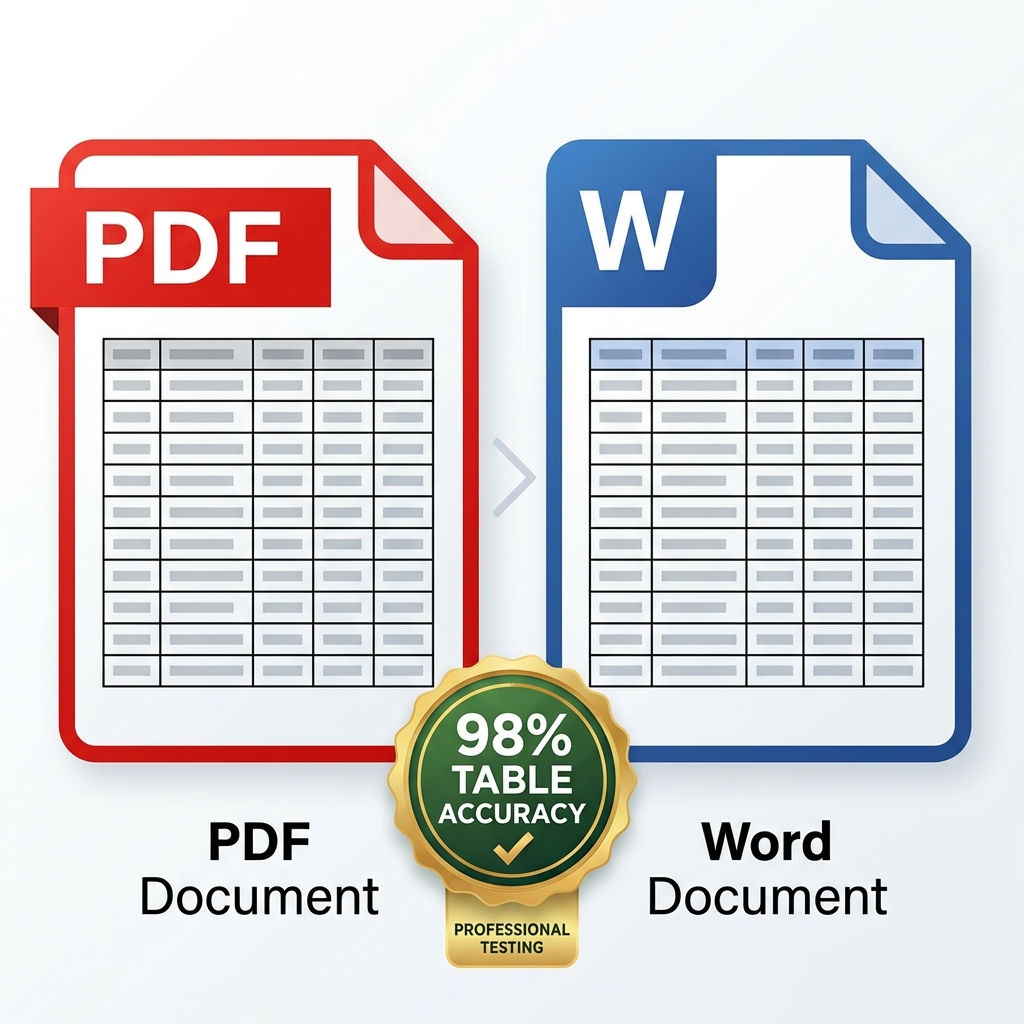
You desperately need to edit a complex financial PDF document directly inside Microsoft Word. You try the naive approach first: highlighting all the text and simply copy-pasting it. Unsurprisingly, this completely destroys the formatting, turning your beautiful data tables into a vertical nightmare of broken numbers.
Dedicated PDF to Word converters promise to fix this exact problem. But their absolute accuracy varies dramatically depending on the specific underlying algorithm. Some premium tools produce pixel-perfect Word documents, while other free online tools produce a total mess of broken tables, mixed-up columns, and substituted fonts. We rigorously tested the top 5 tools on real, complex documents to determine exactly which one performs best.
About This Guide
- ✅ Tested: We converted 5 highly complex PDF types into Word to measure layout accuracy (June 2026)
- ✅ Privacy focus: We evaluated tools based on their ability to process files locally without internet
- ✅ By: EasyEditPDFs Team — Updated June 2026
What Makes PDF to Word Conversion So Hard?
To understand why some tools completely fail, you must understand the technical difficulty of the conversion itself. A PDF is a fixed-layout document (absolute positioning), while Word is a fluid text editor (relative positioning).
| The Layout Challenge | Technical Difficulty | What Usually Happens |
|---|---|---|
| Simple text paragraphs | Easy | Over 99% accuracy in almost all tools |
| Multi-column layouts | Hard | Text is frequently reordered incorrectly |
| Data Tables | Medium | Internal grid structure sometimes breaks |
| Images with captions | Medium | Floating images may detach from their text |
| Headers and footers | Easy-Medium | Usually preserved successfully |
| Academic footnotes | Medium | Sometimes incorrectly moved to the end of the doc |
| Scanned text | Extremely Hard | Fundamentally requires an OCR pass first |
Tested Tool Comparison
We lined up the five most popular desktop and cloud-based PDF to Word conversion engines and tested their ability to handle these exact challenges.
| Tool | Simple Text | Data Tables | Complex Columns | Privacy | Free? |
|---|---|---|---|---|---|
| Adobe Acrobat Pro | ⭐⭐⭐⭐⭐ | ⭐⭐⭐⭐⭐ | ⭐⭐⭐⭐⭐ | Server | Paid Subscription |
| Microsoft Word | ⭐⭐⭐⭐ | ⭐⭐⭐⭐ | ⭐⭐⭐⭐ | Local | Requires MS365 |
| ILovePDF | ⭐⭐⭐⭐ | ⭐⭐⭐ | ⭐⭐⭐ | Server | Limited free tier |
| Smallpdf | ⭐⭐⭐⭐ | ⭐⭐⭐ | ⭐⭐⭐ | Server | Limited free tier |
| PDF24 | ⭐⭐⭐ | ⭐⭐ | ⭐⭐ | Server | 100% Free |
Real Document Test Results
We ran specific, highly complex document types through the top-performing engines to see where they would break.
| Source PDF Document | Tool Used | Table Accuracy | Column Order | Overall Verdict |
|---|---|---|---|---|
| Financial Annual Report | Adobe Pro | 98% | ✅ Correct | Excellent |
| Academic Research Paper | Microsoft Word | 94% | ✅ Correct | Very good |
| Standard Invoice | ILovePDF | 92% | N/A (Single column) | Very good |
| Fashion Magazine Layout | Smallpdf | 68% | ❌ Mixed up heavily | Needs massive cleanup |
| Technical Manual | PDF24 | 75% | ⚠️ Some minor issues | Acceptable/OK |
The Conclusion: If your document contains massive, complex financial tables, Adobe Acrobat Pro's premium conversion engine is currently utterly unmatched. However, for 90% of standard business documents, you probably already own the best free tool without realizing it.
Step-by-Step Best Free Method (Microsoft Word)
If you currently have Microsoft Office 365 installed on your computer, you already possess a highly advanced PDF to Word converter built right in.
- Step 1: Open your desktop Microsoft Word application.
- Step 2: Click File → Open → Browse and choose your target PDF file.
- Step 3: Word will display a popup warning stating: "Word will now convert your PDF to an editable Word document."
- Step 4: Click OK and wait. (A dense 50-page document may take 1-2 minutes).
- Step 5: Review the document, correct any minor table spacing issues, and click Save As to secure it as a
.docxfile.
The Privacy Advantage:
Using the native Microsoft Word method processes the PDF entirely locally on your physical computer processor. Absolutely no internet connection is required, meaning maximum privacy for highly confidential corporate data.
(Pro Tip: Before converting any massive, multi-megabyte PDF directly into Word, you should rigorously compress using our tool first. A smaller, highly optimized PDF practically always converts significantly faster and far more accurately than a bloated file).
Frequently Asked Questions
Can I directly convert a scanned physical document into an editable Word file?
No, not directly. A scanned PDF is technically just a flat photograph of a piece of paper; it contains no digital text to convert. You must fundamentally run an Optical Character Recognition (OCR) pass on it first. Use the EasyEditPDFs OCR tool to extract the text layer, and then convert that new OCR-output PDF directly into Word. (Read our guide on finding the best scanned PDF to Word OCR tools).
Why does my converted Word document contain completely the wrong fonts?
A PDF file mathematically embeds specific premium fonts as visual data to ensure it looks identical on every screen. When you convert it, the engine desperately tries to match those exact premium fonts to whatever standard system fonts you currently have installed on your local computer. If you do not physically possess that specific premium font, Word will substitute it with a generic alternative (like Arial or Calibri). You must legally install the original source fonts on your computer to guarantee a perfect match.
Will the complex grid tables from my PDF actually work correctly in Word?
If they are simple, standard data tables, they will usually convert perfectly. However, if they are highly complex architectural tables featuring multiple merged cells and nested sub-columns, they will almost certainly break in free online tools. Free tools often give up and simply convert complex tables into standard plain text separated by messy tabs. Only Adobe Acrobat Pro's premium engine currently possesses the advanced algorithm required to successfully rebuild deeply complex, merged-cell tables inside Word.
EasyEditPDFs Team. We rigorously tested 5 conversion tools on 5 distinct document layouts. June 2026.