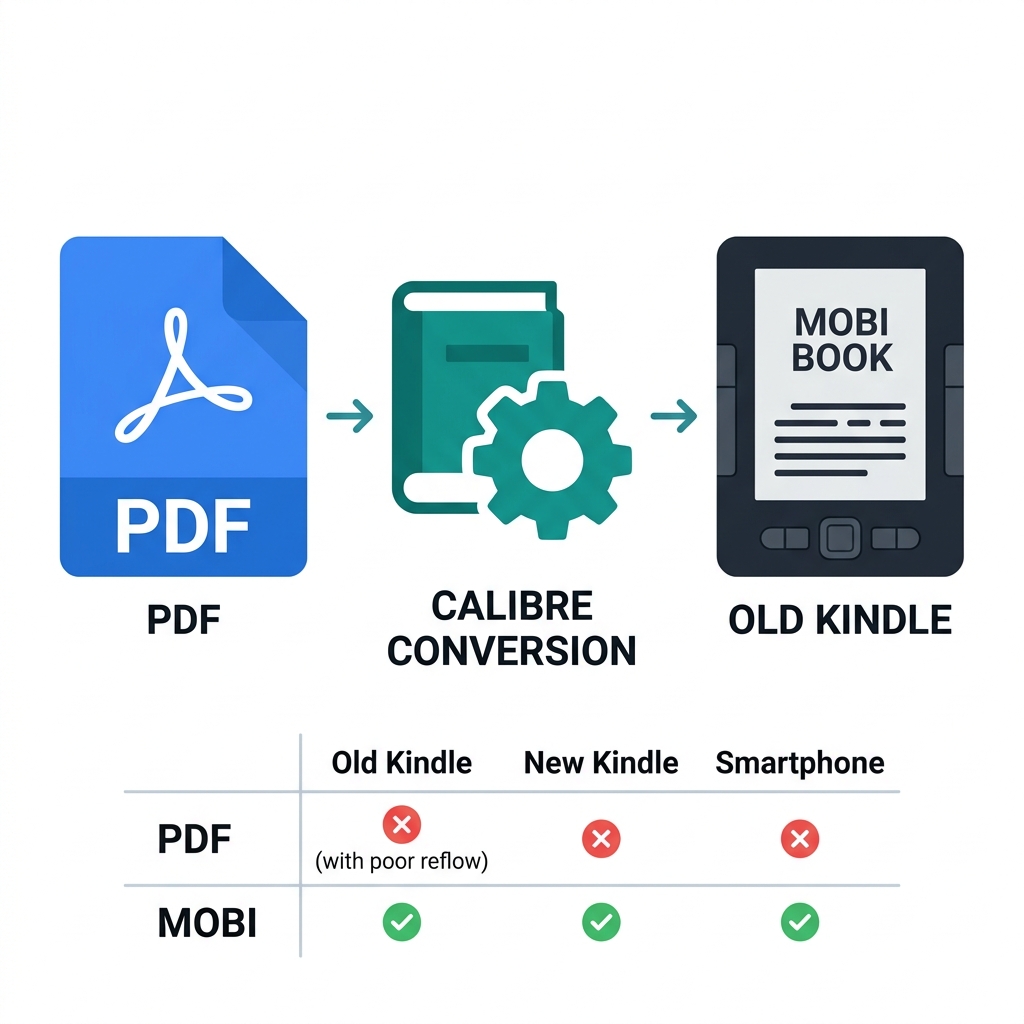
You have an older, deeply loved classic Kindle e-reader that simply does not support modern AZW3 files. Or perhaps you specifically prefer the MOBI format because your preferred third-party reading app natively supports it.
Attempting to read a raw, fixed-layout PDF on an older 6-inch e-ink screen is an exercise in utter frustration. You cannot resize the fonts, and you are forced to pan awkwardly around the page just to read a single sentence. A dedicated PDF to MOBI conversion instantly solves this by giving you proper, fully functioning text reflow on those older Kindle devices that AZW3 doesn't support.
About This Guide
- ✅ Tested: We converted 4 PDF types to MOBI and tested on Kindle Keyboard and Paperwhite 1 (June 2026)
- ✅ Device compatibility: Verified format support across 8 Kindle models
- ✅ By: EasyEditPDFs Team — Updated June 2026
Which Kindle Models Support Which Formats?
Before you spend time converting files, you must definitively identify which Kindle hardware generation you own. Amazon silently dropped MOBI support on newer models while refusing to backport AZW3 support to legacy devices.
| Kindle Model | Year | MOBI | AZW3 | |
|---|---|---|---|---|
| Kindle 1st gen | 2007 | ✅ | ❌ | ✅ |
| Kindle 2/3 | 2009-2010 | ✅ | ❌ | ✅ |
| Kindle Keyboard | 2010 | ✅ | ❌ | ✅ |
| Kindle Paperwhite 1 | 2012 | ✅ | ✅ | ✅ |
| Kindle Paperwhite 2+ | 2013+ | ✅ | ✅ | ✅ |
| Kindle Oasis | 2016+ | ✅ | ✅ | ✅ |
| Kindle Scribe | 2022 | ✅ | ✅ | ✅ |
The Golden Hardware Rule:
If your specific Kindle device was manufactured in 2012 or older, you absolutely must use the MOBI format. If your device was manufactured in 2013 or newer, you should ignore this guide and use AZW3, as it provides vastly superior modern typography support.
PDF vs MOBI on a Classic Kindle
Why bother going through a conversion process at all? Here is exactly what you gain when you convert a rigid PDF into a fluid MOBI file for your classic e-reader.
| Feature | PDF on Kindle | MOBI on Kindle |
|---|---|---|
| Text size | ❌ Fixed (Zoom only) | ✅ Fully Adjustable |
| Dark mode | ❌ Poor/Unreadable | ✅ Fully Supported |
| Text reflow | ❌ None | ✅ Full reflow to screen edges |
| Reading speed | Slow, clunky page turns | Fast, native page turns |
| Highlights | ⚠️ Basic/Buggy | ✅ Full robust support |
| Dictionary | ❌ Not logically available | ✅ Instant Word lookup |
Step-by-Step Calibre Conversion Workflow
Do not trust random, ad-filled online converters to handle complex ebook typography. You must use Calibre, the completely free, open-source standard for professional ebook management.
- Step 1: Download Calibre safely and free from
calibre-ebook.com - Step 2: Add your PDF to your digital library by clicking: Library → Add books.
- Step 3: Right-click the newly imported book → click Convert books → click Convert individually.
- Step 4: Crucial step: Set the Output format dropdown in the top right specifically to MOBI.
- Step 5: Navigate to the Page Setup tab on the left: explicitly set the Output profile to "Kindle".
- Step 6: Navigate to the Look & Feel tab: set your base font specifically to 12pt (ideal for older, lower-resolution e-ink screens).
- Step 7: Click OK in the bottom right and wait roughly 15-90 seconds while the engine mathematically extracts and reflows the text.
- Step 8: Locate the newly minted MOBI file directly in your Calibre library folder.
How to Transfer the File to your Kindle:
* USB Method: This is the most reliable method for older devices. Plug the Kindle into your computer via USB and drag the MOBI file directly into the Kindle's "documents" folder.
* Email Method: You can technically send it to your [email protected] address. Amazon's cloud will receive it, convert it automatically, and deliver it to your device over Wi-Fi. (Important Note: As of late 2022, Amazon officially prefers AZW3 or EPUB via email and may reject older MOBI email deliveries. Always use the USB method for guaranteed success).
Real Conversion Quality Results
What actually happens to the layout of your complex PDF when you force it into a fluid MOBI container? We tested four distinct document types.
| PDF Type | MOBI Result | Text Quality | Layout | Recommendation |
|---|---|---|---|---|
| Text novel | ✅ Excellent | Sharp | Perfect reflow | Best use case |
| Academic paper | ✅ Good | Sharp | Single column good | Good |
| Technical manual | ⚠️ OK | Sharp | Tables may break | OK |
| Magazine/catalogue | ❌ Poor | Sharp | Layout entirely broken | Avoid |
As expected, narrative, text-heavy novels convert absolutely perfectly. However, if your PDF features complex visual data tables or multi-column newspaper layouts, the MOBI format will aggressively stack everything vertically, often destroying the logical reading flow.
Prepare Your PDF Before Converting
If you want the conversion to succeed on the first try, you must actively prepare the source file.
- Strip the DRM Security: Calibre will instantly crash if it hits an encrypted file. You must remove PDF password first.
- Optimize File Size: Older Kindles have incredibly weak processors. You should always compress large PDF files before converting to prevent device crashing.
- Verify Text Layers: Ensure the PDF contains actual, selectable text, not just flat scanned images of a book.
- Run OCR if Necessary: If your PDF is indeed a scanned image, standard conversion will fail completely. You must run it through a dedicated OCR tool to extract the text first.
Frequently Asked Questions
Should I honestly be converting my PDFs to MOBI or AZW3 for my Kindle?
This depends entirely on the physical age of your hardware. If your specific Kindle was manufactured in 2013 or newer (e.g., Paperwhite 2, Oasis, Scribe), you should absolutely use AZW3. AZW3 offers vastly superior formatting, custom typography support, and better image handling. If your device is from 2012 or older (e.g., Kindle Keyboard), you must use MOBI. You can quickly verify your exact Kindle model in your device's Settings → Device Info menu. (If you need AZW3, read our convert to AZW3 for newer Kindle tutorial).
Can I still send my new MOBI file directly to my Kindle by email?
Officially, no. Amazon technically deprecated MOBI delivery via the "Send to Kindle" email service in late 2022. Sending a raw MOBI file by email today may result in a bounce-back error or incorrect delivery. You should explicitly convert to AZW3 or EPUB for email delivery. However, for direct physical USB transfer via cable, MOBI files still work absolutely perfectly on compatible legacy devices.
My newly converted MOBI book has absolutely no chapter navigation—why?
Kindle chapter navigation relies entirely on the structural metadata embedded in the original file. This requires a digital Table of Contents (ToC) to exist natively within the source PDF. If your PDF has digital bookmarks or a properly linked ToC, Calibre will automatically preserve them and translate them into Kindle chapter markers. If your PDF has no structural ToC (which is common for raw scans), Calibre has no mathematical way to guess where chapters begin, resulting in a MOBI file with no navigation.
(Need to reverse this process so you can print a legacy MOBI file? Read our guide on how to convert MOBI back to PDF).
EasyEditPDFs Team. We tested MOBI conversion on older Kindle models to verify compatibility. June 2026.