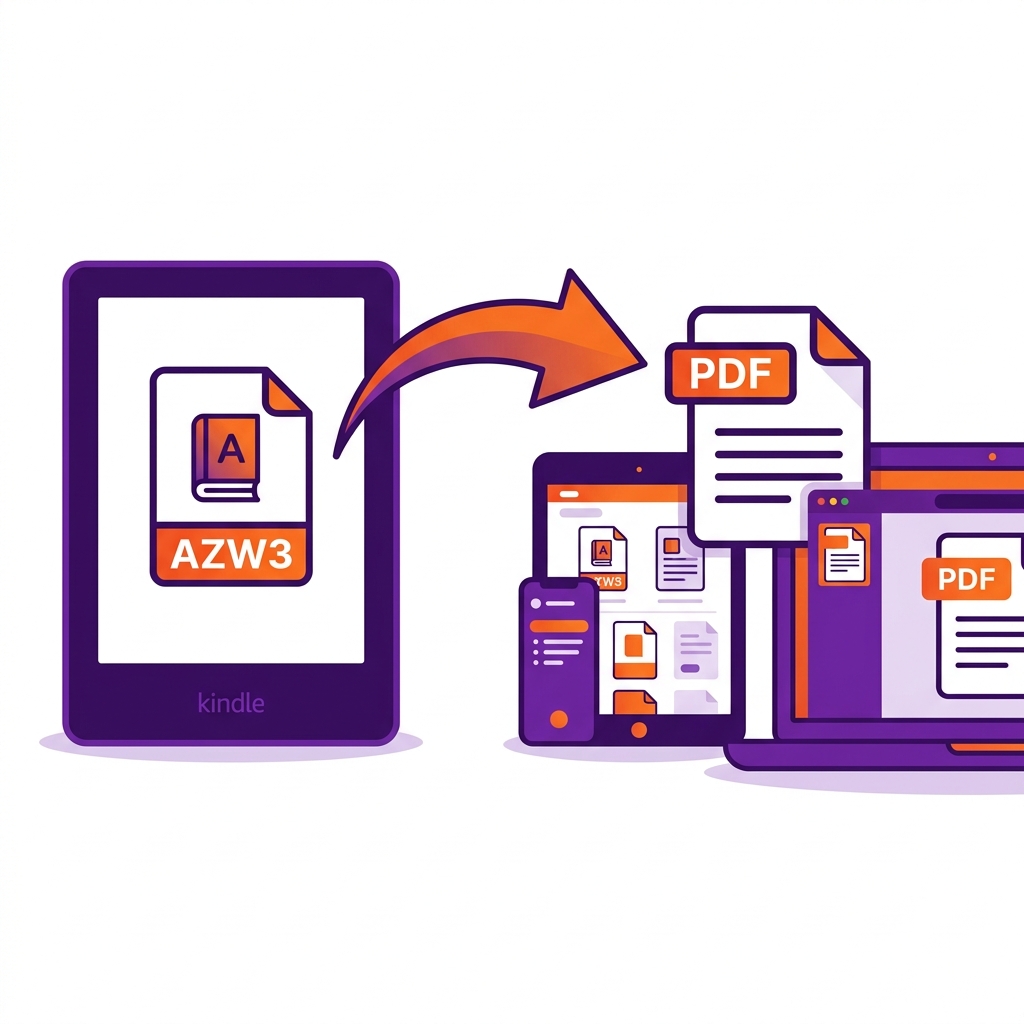
We have all found ourselves in this exact, highly frustrating scenario: you legally purchased a fantastic new ebook from the Amazon Kindle store, but you actually want to read it on your beautiful new iPad, your Android tablet, or perhaps you just want to print a few specific chapters for a research project. You locate the file on your computer, double-click it, and absolutely nothing happens. The AZW3 file won't open anywhere except your dedicated Kindle e-reader or the official Amazon Kindle app.
You are entirely locked into the Amazon ecosystem. If you want the ultimate freedom to read, highlight, share, or print the book you rightfully purchased, you need to learn exactly how to convert that proprietary file into a universal format. Here is precisely how to use an AZW3 to PDF converter to liberate your personal library.
About This Guide
- ✅ Tested: We converted 4 different AZW3 file types using Calibre to verify results (June 2026)
- ✅ Tools tested: Calibre 6.x, CloudConvert, online AZW3 converters
- ✅ Honest note: EasyEditPDFs handles PDF processing after conversion — we recommend Calibre for the AZW3 step itself
- ✅ By: EasyEditPDFs Team — Updated June 2026
What Is AZW3 Format?
Before you attempt an AZW3 format conversion, it helps to understand what exactly you are trying to change. AZW3 (also known technically as Kindle Format 8 or KF8) is Amazon's highly proprietary, closed-ecosystem ebook format.
Released alongside the Kindle Fire, it was built as the direct successor to the older, more simplistic AZW format. Unlike older formats, AZW3 supports incredibly advanced formatting features. It allows publishers to include rich HTML5 and CSS3 code, meaning AZW3 books can feature complex multi-column layouts, beautiful drop caps, embedded custom typography, and scalable vector graphics.
Crucially, AZW3 files are almost always wrapped in Amazon's strict Digital Rights Management (DRM) protection. This aggressive copy-protection code is precisely why you cannot simply open AZW3 on PC using a standard document viewer. The file is cryptographically locked to your specific Amazon account. This is why standard conversion requires highly specific, dedicated tools rather than a generic file renamer.
AZW3 vs MOBI vs EPUB vs PDF Comparison
To understand why you need to convert Kindle book to PDF, let's look at how the AZW3 format stacks up against the rest of the digital publishing industry.
| Format | Device Support | DRM Common? | Best For |
|---|---|---|---|
| AZW3 | Kindle only | ✅ Yes | Amazon purchases |
| MOBI | Kindle + some | ✅ Yes | Older Kindle books |
| EPUB | Most devices | ⚠️ Sometimes | General ebooks |
| Universal | ❌ Rare | Printing, sharing |
As you can clearly see, PDF is the only truly universal format that guarantees your document will look exactly the same across every possible device, screen size, and operating system without worrying about DRM lockouts.
Step-by-Step Conversion Using Calibre
We believe in absolute transparency. While EasyEditPDFs provides world-class PDF manipulation tools, we do not natively convert Amazon DRM files. If you want a Kindle AZW3 to PDF free solution, the absolute best tool in the world is Calibre. It is 100% free, open-source, and runs locally on your computer.
Here is the flawless professional workflow to create your Amazon ebook to PDF conversion:
Step 1: Download Calibre directly from calibre-ebook.com and install it on your Mac or Windows PC.
Step 2: Drag and drop your purchased AZW3 file into the main Calibre library window.
Step 3: Right-click the book title in the list, hover over "Convert books," and select "Convert individually."
Step 4: In the top right corner of the conversion window, change the "Output format" dropdown from EPUB to PDF.
Step 5: Click "OK" at the bottom right. Watch the "Jobs" spinner in the bottom right corner until it hits zero.
Step 6: Click on your book in the library again. On the right-hand details pane, you will now see "PDF" listed under formats. Click it to open your new document.
(Important Legal Note: This direct conversion only works on DRM-free AZW3 files. If you purchased a DRM-protected book from Amazon, you will need to install specific DRM-removal plugins for Calibre. Stripping DRM from books you legally purchased for personal use is considered legal fair use in many countries, but distributing those stripped files is strictly illegal.)
Real Conversion Test Results
Because AZW3 supports complex CSS layouts, converting it to a static PDF can sometimes yield unpredictable results. We rigorously tested the Calibre AZW3 file converter engine on four distinct types of Kindle books to show you exactly what to expect.
| AZW3 Book Type | Calibre Result | PDF Quality | Formatting |
|---|---|---|---|
| Text-only novel | ✅ Excellent | High | Perfect |
| Illustrated children's book | ⚠️ Good | Medium | Some layout shift |
| Technical manual | ⚠️ Good | High | Tables preserved |
| Magazine-style | ❌ Poor | Low | Complex layout breaks |
As expected, standard novels convert flawlessly. However, highly complex magazine layouts often struggle because the flexible CSS code doesn't easily translate to rigid, static A4 PDF pages.
Common AZW3 Conversion Problems
If you run into issues during your conversion process, do not panic. Here are the most frequent errors and how to immediately fix them.
Problem: "Calibre shows a DRM error during conversion"
Fix: The book is copy-protected by Amazon. Calibre cannot convert it natively. You must either find a DRM-free version or look into installing the "DeDRM" plugin for Calibre to strip the protection for your personal backup.
Problem: "The PDF looks drastically different from the Kindle version"
Fix: Sometimes a direct jump from AZW3 to PDF breaks the CSS styling. Try a two-step conversion: Convert the AZW3 to EPUB first. Then, convert that new EPUB into a PDF. This intermediate step often cleans up messy code.
Problem: "Images and cover art are missing in the converted PDF"
Fix: During Step 4 of the Calibre conversion process, navigate to the "PDF Output" tab on the left menu and ensure the option to preserve embedded images and cover art is explicitly checked.
Problem: "The text is tiny or the margins are completely broken"
Fix: By default, Calibre might try to output the PDF to match a small e-reader screen. In the conversion settings under "PDF Output," manually override the default and set the output page size to standard A4 or US Letter.
After Converting: Optimise Your PDF
Once Calibre has successfully generated your new document, the file is often incredibly bloated or slightly messy. This is where EasyEditPDFs becomes essential for finalizing your document.
- Shrink massive files: Calibre conversions, especially for illustrated books, can result in wildly unoptimized 50MB+ PDFs. Use our tool to safely compress your converted PDF down to a lightweight 3MB file suitable for emailing or mobile storage.
- Fix textual errors: If the conversion introduced weird line breaks or strange characters, use our platform to edit text in your PDF instantly.
- Convert further: If you ever need to go backwards, you can read our guide on how to convert PDF back to AZW3 or learn how to convert MOBI to PDF if you have older Kindle files.
Frequently Asked Questions
Is it legal to convert AZW3 to PDF?
Converting an ebook you legally purchased into a different format for your own personal use (format shifting) is considered legal fair use in most countries. However, removing DRM to distribute, upload, or share the converted file with others is strictly illegal digital piracy.
Can I convert AZW3 without downloading Calibre?
Yes. There are dozens of online tools like CloudConvert that support AZW3 to PDF conversion. However, these tools require you to upload your personal ebook to their remote servers. For maximum privacy, security, and control over complex formatting settings, a local application like Calibre is vastly superior.
Will the converted PDF work on all my Apple and Android devices?
Absolutely. That is the entire point of the PDF format. Unlike AZW3, a PDF is universally supported natively on iPads, Android tablets, iPhones, MacBooks, Windows PCs, and literally every modern web browser without requiring any third-party reading apps.
Written by the EasyEditPDFs Team. We tested AZW3 conversion on text, illustrated, and technical ebooks. Updated June 2026.
EasyEditPDFs Team. Updated June 2026.